


      
What is Mail Merge?
Mail Merge is an automated feature of MS Word that enables you to merge a data source( a file that stores fields and records of information, like first name, last name, etc...) into a copy of a document to customize or personalize the document. The Word 2007 Mail Merge toolbar looks as follows: 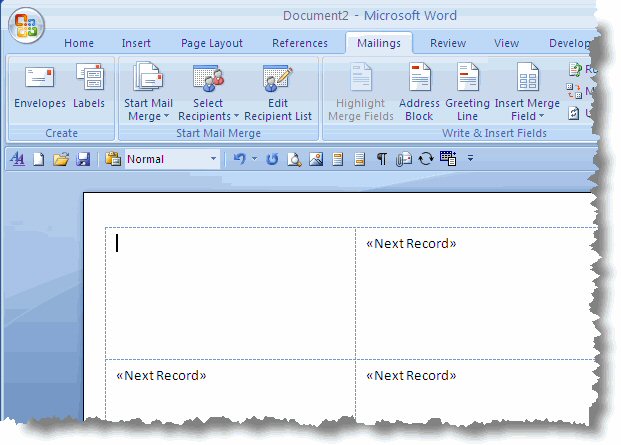 Mail Merge in Word is accomplished by the following steps: Step 1: Set the data document type. The data document holds the text that repeats for all merged documents. In the Mailings tab, click Start Mail Merge and select the document type. 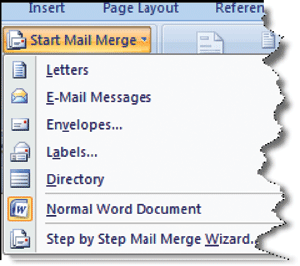 Word offers the following types of documents :
This document type is also used when sending out a form letter or invoice. Each recepient can receive a personalized e-mail. Step 2: Associate a data source with the document: In the Mailings tab, choose Select Recepients. 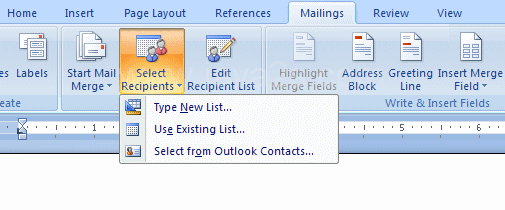 The various options are:
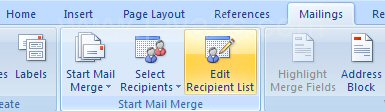 The recepient list can be refined by Sort, Filter, Find Duplicates, Find Recepient and Validate addresses options.  Step 3: Design your data document by combining ordinary document features with Word merge fields. Placeholders can be used when designing the data document for information pertaining to the intended recepient. When you are done, edit your document and substitute Merge Fields for the placeholders. To insert a merge field, position the insertion point where you want the field to appear. In the Mailings tab, choose Insert Merge Field in the Write & Insert Fields group. Click on the field you want to insert.Special sets of merge fields like Address Block and Greeting Line can be inserted to save time!  Step 4: Preview the finished document by testing to see how it looks with different data records. Click the Preview Results button in the Preview Results group of the Mailings tab. Navigation buttons help you to traverse through the records. 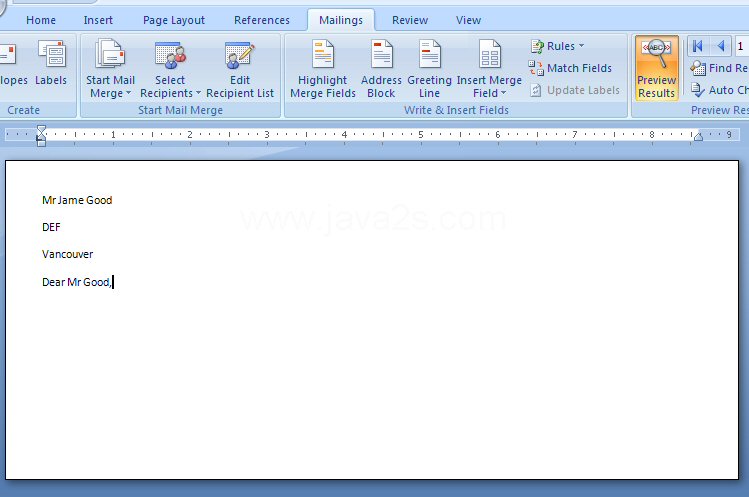 Step 5: Finish the process. Merge the data document with the data source, creating a printed result, a saved document or an e-mailed document. 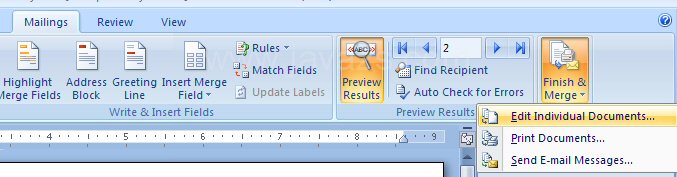 Your other option is to use the Mail Merge Wizard! In the Start Mail Merge group of the Mailings tab, click the Start Mail Merge button and choose Step by Step Mail Merge Wizard. 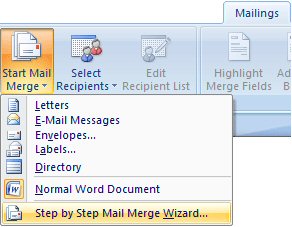 That's it! 
|