






      
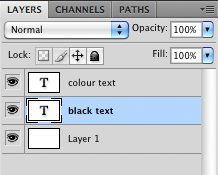
� Step 1 Create a new document, you choose the settings. I'm using: Width: 1400 px Height: 900 px Resolution: 72 pixels/inch Colour Mode:RGB, 8 bit Background: White � Step 2 Create a new layer. Using the text tool, choose a font (I'm using Arial Black), a colour (black) and a font size (maybe 200 pt). Draw a text box and type whatever, limited to about 2 words so it will fit on the document. I have wrote "photoshop". � Step 3 Duplicate the text layer and on the duplicate, change the text colour to red (or any other colour than black). Right-Click the both text layers and click "Rasterize Type". Now arrange the layers (from bottom to top): white background, black text, colour text.
Step 4 Select the black text layer. If you are using a mac, hold Command & Alt (option) or If you are using windows, hold control & alt. � While holding down these keys press the down and right key alternatively in succession, until you get the 3D depth you want. � Step 5 Merge all the black text layers.
� Step 6 (optional) On either of the text layers you can put a gradient overlay or whatever effect to your desire.
� � � Thats the end of the� Enjoy. :D � � � 
Dig this tutorial?
Thank the author by sending him a few P2L credits!
 


|






 tutorial

